A great IPTV service can still look terrible if it’s set up badly. Most of the buffering, freezing and blurry pictures that people blame on their provider actually start somewhere else: a weak Wi-Fi signal, a slow streaming stick, the wrong app setting or a router hidden behind the television. Fix those, and the same service suddenly looks brilliant.
This guide explains how an IPTV service actually reaches your screen, walks you through setup on every common device, and gives you a clear symptom-by-symptom troubleshooting table. It’s written for ordinary Irish homes, so you won’t need any technical knowledge, just ten minutes and a bit of patience.
Key takeaways
- Every IPTV service depends on four links: the provider’s servers, your internet line, your home network and your device.
- Most picture problems come from the home network or the device, and they’re usually easy to fix.
- Use Ethernet or 5 GHz Wi-Fi, a recommended player app and hardware decoding for the best results.
- Diagnose problems one link at a time instead of changing everything at once.
How an IPTV Service Reaches Your Screen: The 4-Link Chain
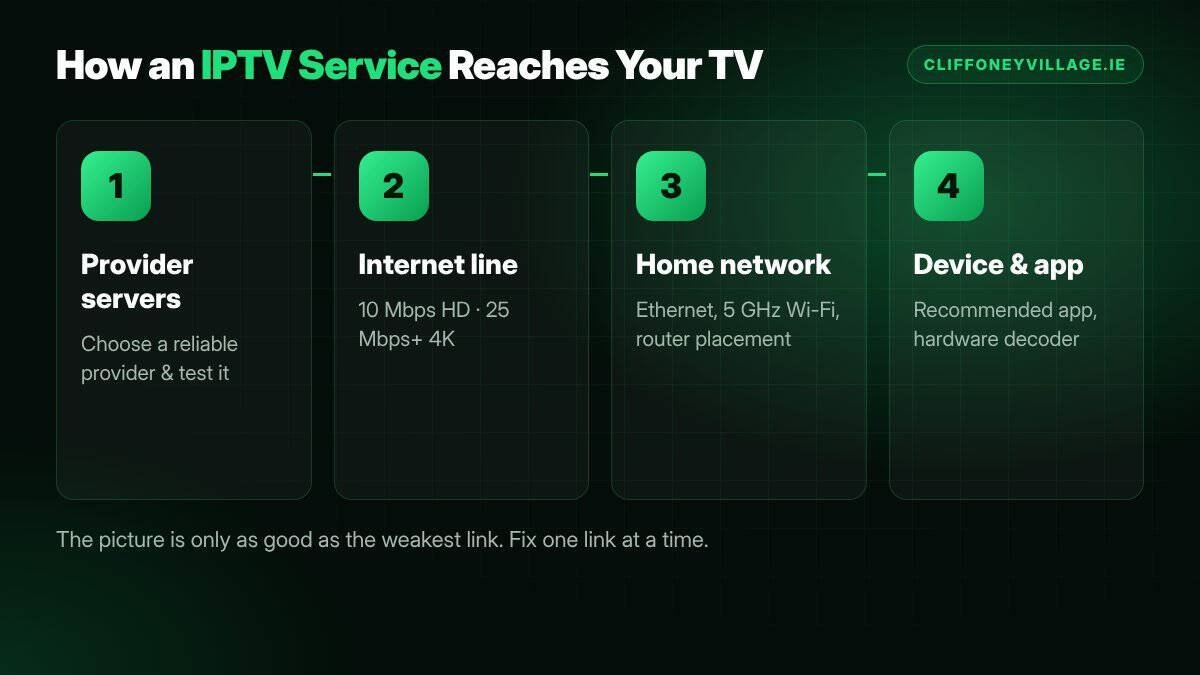
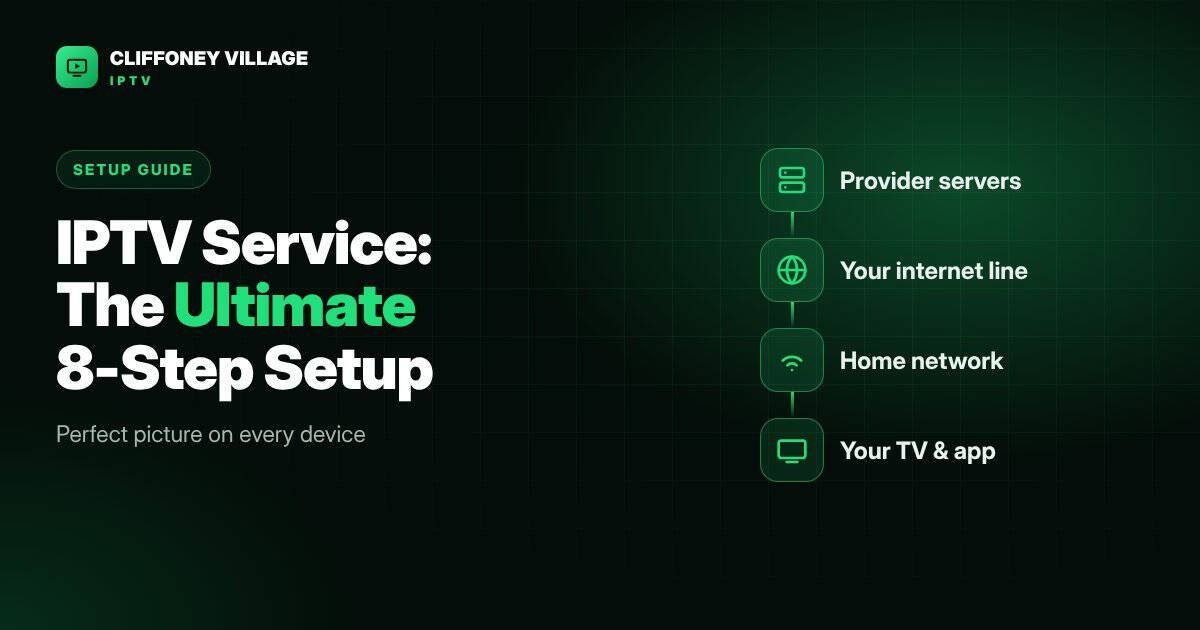
Imagine a chain with four links. The picture has to travel through every one of them, and it’s only as good as the weakest link.
Link 1: The Provider’s Servers
This is where the channels and films come from. A good IPTV service uses well-maintained, load-balanced servers that cope with busy evenings and big matches. You can’t control this link, which is why choosing a reliable provider and testing it with a trial matters.
Link 2: Your Internet Line
The broadband connection into your home: full fibre, part fibre, wireless or mobile. You need roughly 10 Mbps for HD and 25 Mbps or more for 4K, with extra headroom if several people stream at once.
Link 3: Your Home Network
Everything between the router and the TV: Wi-Fi signal, cables, walls and the number of devices competing for bandwidth. This is the link that causes the most trouble in Irish homes, where thick walls and badly placed routers are common.
Link 4: Your Device and App
The Smart TV, streaming stick, box or phone, plus the player app running on it. An underpowered device or a poorly configured app can make even a perfect stream stutter.
Keep this chain in mind. When something goes wrong with your IPTV service, the fastest fix comes from working out which link is weak, rather than restarting everything at random.
Before You Start: What You Need
- Your login details from the provider, usually a username, password and server address, or a playlist link.
- The name of the player app your provider recommends for your device.
- Your Wi-Fi password, or an Ethernet cable if your device has a network port.
- Ten minutes without interruptions.
Run a quick check of your connection on the device itself with a free tool like Speedtest by Ookla. Write down the result so you can compare later.
The 8-Step IPTV Service Setup at a Glance
If you only read one section, read this one. These eight steps cover almost every setup, whatever device you use.
- Measure your speed on the device you’ll watch on.
- Choose the right device: a modern Smart TV, 4K streaming stick or quality Android box.
- Connect by cable, or use 5 GHz Wi-Fi if a cable isn’t possible.
- Install the recommended player app from your device’s official app store.
- Enter your login details carefully, ideally by copy and paste.
- Set hardware decoding and a medium or large buffer in the app settings.
- Match quality and time zone to your connection and to Irish time.
- Test a live channel, then save your IPTV service support contact in your phone.
The sections below explain each step in more detail, device by device.
Setting Up Your IPTV Service on Each Device
The exact menus differ between apps and software versions, but the overall steps are the same. Your provider should send device-specific instructions too.
Amazon Fire TV Stick
- Connect the stick to your TV’s HDMI port and to power, then join your Wi-Fi.
- Open the Amazon Appstore and install the player app your provider recommends.
- Open the app and choose the login type your provider uses.
- Enter your details exactly as sent, paying attention to capital letters.
- Wait for channels and the programme guide to load, then test a live channel.
Tip: a 4K-capable Fire TV Stick handles an IPTV service noticeably better than the oldest models, even on an HD television, because its processor is faster.
Samsung and LG Smart TVs
- Make sure the TV’s software is up to date in the settings menu.
- Open the TV’s app store and search for the recommended player app.
- Install it, open it and enter your login details.
- Some apps on Smart TVs are activated through a code shown on screen; follow the instructions in the app if so.
Android TV Boxes
- Connect the box by Ethernet if it has a port. It’s the single biggest improvement you can make.
- Install the recommended app from the Google Play Store.
- Enter your login details and allow the guide to download fully before judging performance.
Apple TV, iPhone and iPad
- Open the App Store and install the recommended player app.
- Enter your login details and let the channel list load.
- On iPhone and iPad, check whether the app supports AirPlay if you want to send the picture to a TV.
Android Phones and Tablets
Install the recommended app from Google Play, log in, and you’re ready. On mobile data, choose a lower quality setting to save your allowance.
Windows PC and Mac
Many player apps have desktop versions, and some providers support web players. Use a wired connection where possible for a laptop that’s used as a TV.
The Settings That Make the Biggest Difference
Once your IPTV service is installed, a few app settings can transform the picture. Names vary between apps, but look for these options.
| Setting | Recommended choice | Why it helps |
|---|---|---|
| Decoder | Hardware (try software if you see glitches) | Uses the device’s video chip for smoother playback |
| Buffer size | Medium or large | Gives the player a cushion against brief network dips |
| Stream format | As recommended by your provider | Some formats are more stable on certain devices |
| Programme guide update | Automatic, daily | Keeps listings accurate |
| Time zone or time shift | Match Irish time | Stops the guide showing programmes an hour out |
| Picture quality | Match to your speed | Prevents buffering on slower lines |
Optimise Your Home Network for Your IPTV Service
Because link three causes most problems, it deserves its own section. These steps are listed from the most effective to the least.
Use a Cable Wherever You Can
An Ethernet cable from the router to the TV or box removes Wi-Fi problems completely. Flat cables tuck neatly under carpets and along skirting boards.
Try Powerline Adapters
If running a cable isn’t practical, powerline adapters send the network through your electrical wiring. Plug one near the router and one near the TV.
Switch to 5 GHz Wi-Fi
Most modern routers broadcast two networks. The 5 GHz one is faster and less crowded, though it travels less far through walls. If your TV is reasonably close to the router, use it.
Move the Router
Routers work best in the open, high up and central. A router on the floor behind the TV cabinet, or in a press under the stairs, will always struggle.
Consider Mesh Wi-Fi
In larger or older houses with thick walls, a mesh system with two or three units spreads strong Wi-Fi to every room.
Limit Big Downloads at Match Time
Game updates, cloud backups and large downloads compete with your IPTV service for bandwidth. Pause them during important live events.
Choosing the Right Quality Setting for Your Connection
Many apps let you choose a stream quality, and many IPTV service providers offer several versions of popular channels. Picking the right one for your connection prevents most buffering before it starts.
| Measured speed on the device | Best choice |
|---|---|
| Under 8 Mbps | SD or low HD; avoid 4K entirely |
| 8–15 Mbps | HD on one screen |
| 15–25 Mbps | Full HD; 4K may work off-peak |
| 25–50 Mbps | 4K on one screen, HD on others |
| Over 50 Mbps | 4K on several screens |
Measure speed on the device itself, not on your phone beside the router. A TV at the far end of the house may see half the speed your phone gets in the hall.
Setting Up an IPTV Service for Several Rooms
Multi-room viewing is one of the best things about an IPTV service, but it needs a little planning. First, check how many screens your plan allows at the same time. Second, give the main TV the best connection, ideally a cable, because that’s where live sport is usually watched. Third, set secondary screens such as bedroom TVs and tablets to HD rather than 4K. That leaves more bandwidth for the main screen when it matters.
If the whole family tends to watch at once, a mesh Wi-Fi system is often the most cost-effective upgrade. It shares the connection evenly around the house instead of leaving the furthest rooms struggling.
Parental Controls and Family Settings
Most player apps include a way to lock categories behind a PIN. Set one up before children use the TV, and hide any categories your family doesn’t need. It also makes the channel list shorter and easier to browse. If you can’t find the option in your app, ask your IPTV service provider; they’ll know where it lives for your device.
Common IPTV Service Setup Mistakes
Typing Login Details by Hand Incorrectly
A single wrong character in a server address causes a login failure. Where possible, copy and paste, or ask support to check your details.
Using an Old, Underpowered Device
Very old sticks and budget boxes can’t decode modern streams smoothly. If everything else is fine but the picture still stutters, the device is likely the bottleneck.
Judging the Service Before the Guide Loads
The first time you log in, the app may take a few minutes to download the full programme guide. Give it time before deciding that something is wrong with your IPTV service.
Troubleshooting: Symptom, Likely Cause, Fix
When something goes wrong, find the symptom below and start with the suggested fix. Change one thing at a time so you know what worked.
| Symptom | Most likely link | Try this first |
|---|---|---|
| Freezes every few minutes on all channels | Home network | Switch to Ethernet or 5 GHz Wi-Fi and retest |
| Freezes only during big matches | Servers or internet line | Lower the quality, then tell support the channel and time |
| One channel never works | Servers | Report the channel name to support |
| Picture blocky or blurry | Internet line or quality setting | Run a speed test; choose HD instead of 4K if speed is low |
| Sound out of sync | Device or app | Switch decoder between hardware and software |
| Guide shows wrong times | App setting | Adjust the time zone or time shift setting |
| App crashes or is very slow | Device | Clear the app cache, update the app and restart the device |
| “Login failed” error | Account details | Re-enter details carefully, then contact support |
Golden rule: if a problem appears on every channel and every app, look at your network and device first. If it appears on one channel only, it’s almost certainly on the provider’s side, so tell support straight away.
How to Report a Problem So It Gets Fixed Fast
When you contact your IPTV service provider, clear details save time for everyone. Include:
- The channel or film name.
- The time it happened.
- Your device and app.
- Whether you were on Ethernet or Wi-Fi.
- What you’ve already tried.
A message like “BBC One froze at 8.15pm on the living-room Firestick over Wi-Fi; restarted the router, no change” lets support act immediately instead of asking you five follow-up questions.
Keep Your IPTV Service Running Smoothly: A Monthly Routine
- Restart your router and streaming device once a week or so.
- Update the player app and your device’s software when prompted.
- Clear the app cache if it starts feeling sluggish.
- Check your speed occasionally to catch broadband problems early.
- Keep your login details saved somewhere safe in case you need to reinstall.
Watching Your IPTV Service Away From Home
One advantage of streaming over a dish is that your IPTV service can travel with you, within the limits of your plan and the provider’s terms. On a phone or tablet, the setup is the same as at home: install the app and log in. A few habits make the experience better on the move.
- Download nothing you don’t need on mobile data. Live streams use a lot of data, so lower the quality when you’re not on Wi-Fi.
- Prefer a strong hotel or holiday-home Wi-Fi over a weak one. Public networks can be slow in the evenings when everyone is online.
- Close other apps. Background downloads and video calls compete for the same connection.
- Remember the screen limit. If someone at home is already watching, your plan may not allow another stream at the same time.
Before travelling abroad, check your provider’s terms about where the service may be used, because content rights can vary from country to country.
When It’s the Service, Not Your Setup
If you’ve worked through the chain, used a cable, checked your speed and the problem continues across devices, the issue may genuinely be on the provider’s side. A good IPTV service will investigate when you report it with clear details. If problems are constant and support doesn’t help, it may be time to compare alternatives. Our IPTV provider checklist explains how to choose a better one, and our trial test plan shows how to test it properly before paying.
Want help setting up?
Every Cliffoney Village IPTV customer gets step-by-step setup help on WhatsApp for Smart TVs, Firestick, Android boxes, Apple TV and phones. Start with a free 30-minute trial.
IPTV Service FAQs
Why does my IPTV service keep buffering?
The most common causes are weak Wi-Fi, a slow device or a quality setting too high for your broadband. Try Ethernet or 5 GHz Wi-Fi, lower the quality and restart your router before contacting support.
What is the best device for an IPTV service?
A recent 4K streaming stick, a quality Android TV box with Ethernet, or a modern Smart TV all work well. The best choice is a fast device connected by cable.
Do I need a VPN to use an IPTV service?
A VPN isn’t required for a properly run service. Some VPNs can actually slow streaming down, so test with and without one if you use it for other reasons.
How much internet speed does an IPTV service need?
About 10 Mbps for HD and 25 Mbps or more for 4K per screen, with extra headroom for other people using the connection.
Why does my IPTV service work on my phone but not on my TV?
Your phone is usually closer to the router and may have a newer Wi-Fi chip than the TV. Measure the speed on the TV itself, then try Ethernet or move the router. If the TV app is old, update it or use a streaming stick instead.
How often should I restart my router and device?
Once a week is a sensible habit, and always before an important live event if you’ve had any glitches. A restart clears memory and refreshes the connection, which fixes a surprising number of small problems.
Will a new router improve my IPTV service?
It can, especially if your current router is several years old or provided free with an older broadband plan. A modern router with strong 5 GHz Wi-Fi often makes a clear difference in larger homes.
Can I use one IPTV service on several devices?
Usually you can install it on several devices, but the number you can watch at the same time depends on your plan. Ask your provider.
Final Thoughts
Setting up an IPTV service well isn’t complicated once you understand the four-link chain. Use a cable where you can, choose the recommended app, set hardware decoding and a sensible quality level, and troubleshoot one link at a time. Do that, and you’ll get the picture you’re paying for. Still stuck? Contact our support team and we’ll walk you through it. For a wider overview, read our guide to IPTV in Ireland.